Characters & staging
Characters and dialogue staging: portraits, expressions, backgrounds and voice
Build characters and expressions in the Character studio, then add backgrounds, music, sound and voice on dialogue cards.
Characters and dialogue staging: portraits, expressions, backgrounds and voice
Build a character once in the Character studio, then bring them on stage from any dialogue card.
1. Create a character
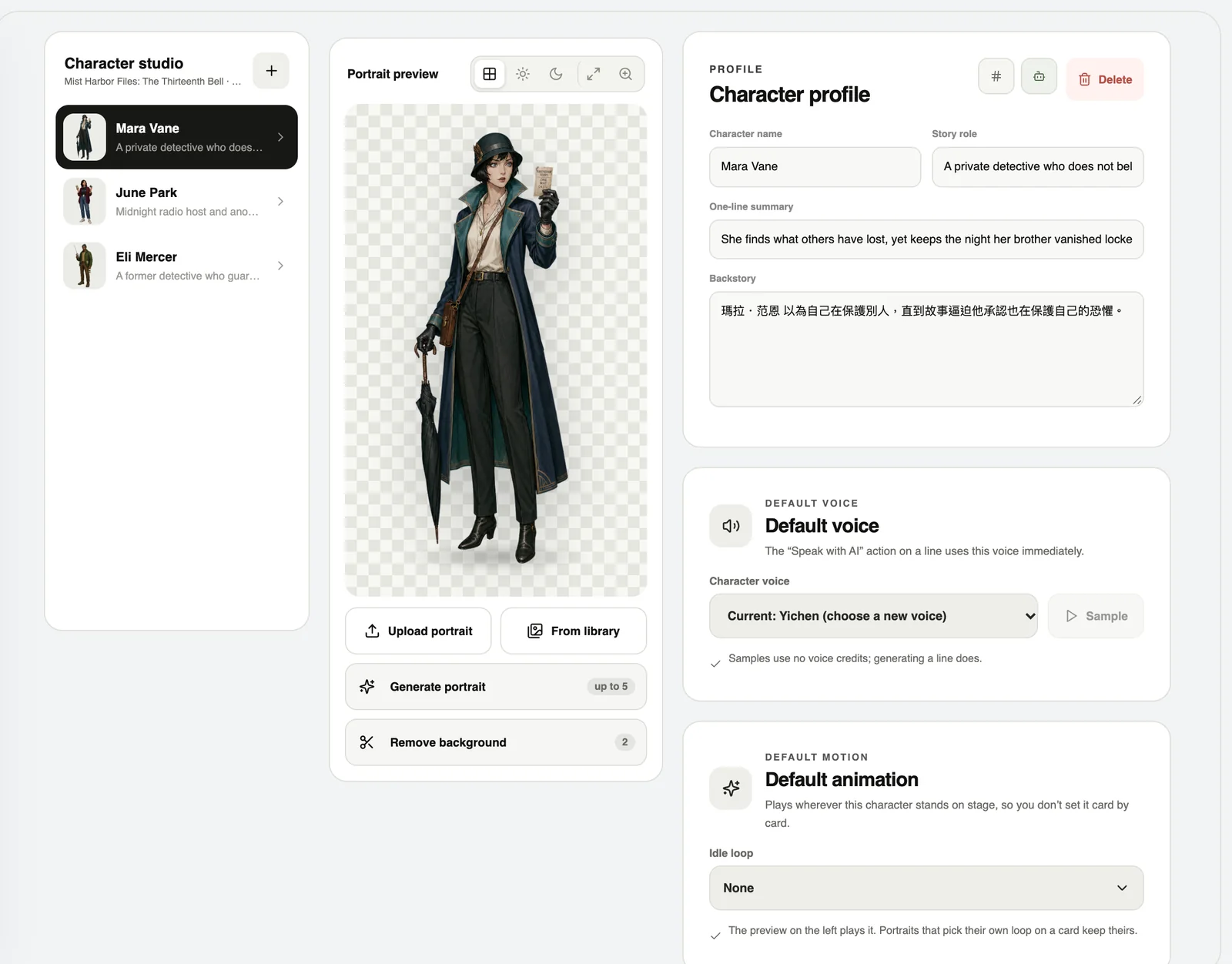
- Press Character studio in the toolbar at the bottom.
- Press +, then upload a portrait with a transparent background (or pick one from your library).
- Fill in the name, story role and a one-line summary.
2. Add expressions
Upload pictures of other expressions under “Expressions”. On Pro, AI can paint a smile, anger or surprise from the portrait, with the background removed for you.
Keep every expression on the same canvas size so the character does not jump around.
3. Let them talk
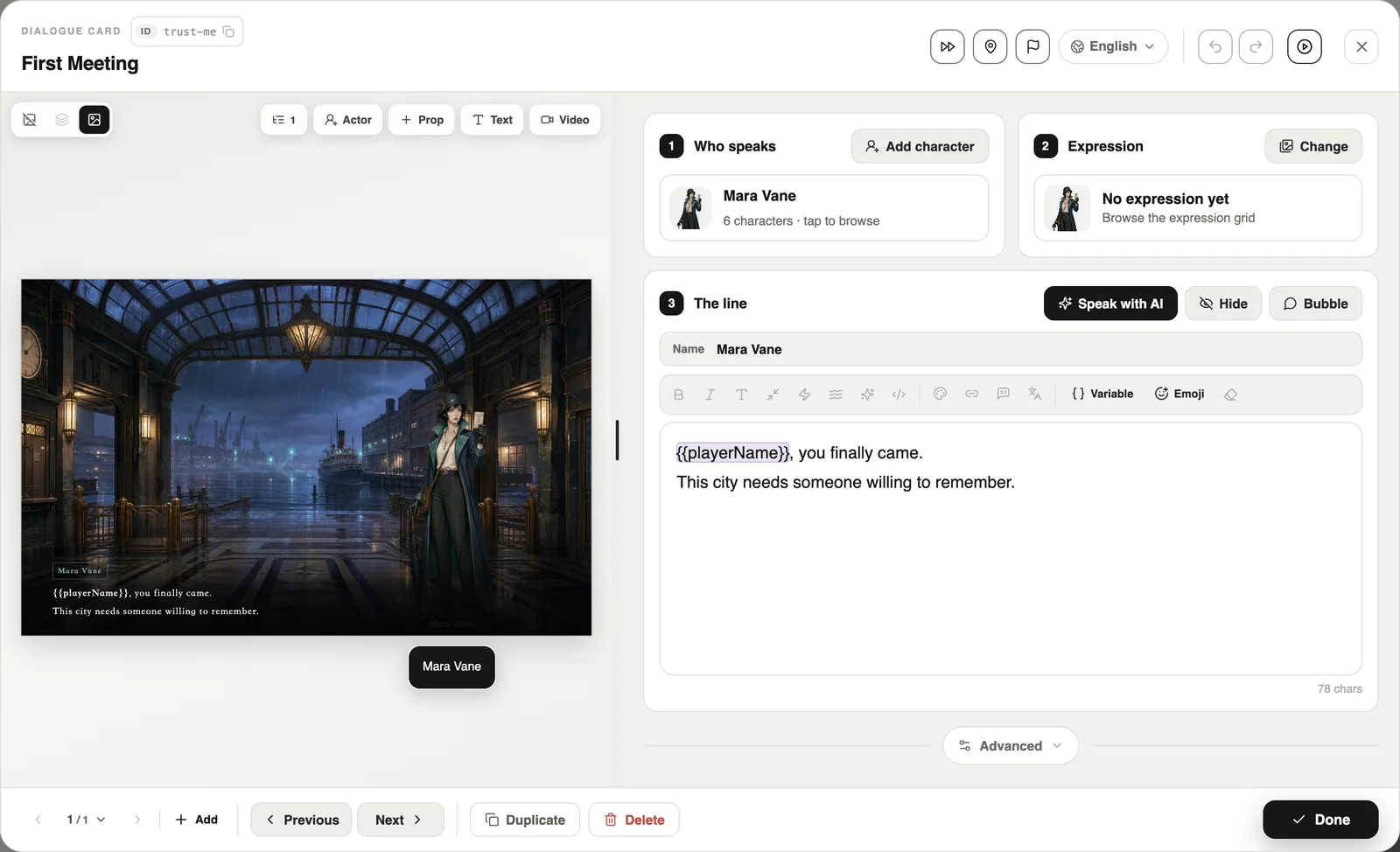
- On a dialogue card, pick the character under “Who speaks”.
- Pick the expression for this line.
- Write the line. Press Speak with AI to hear it first.
4. Advanced: background, music and voice
Press Advanced at the bottom of a dialogue card to set: voice, background, music, sound effects, transitions, visual effects, and “Set variables on card entry”.
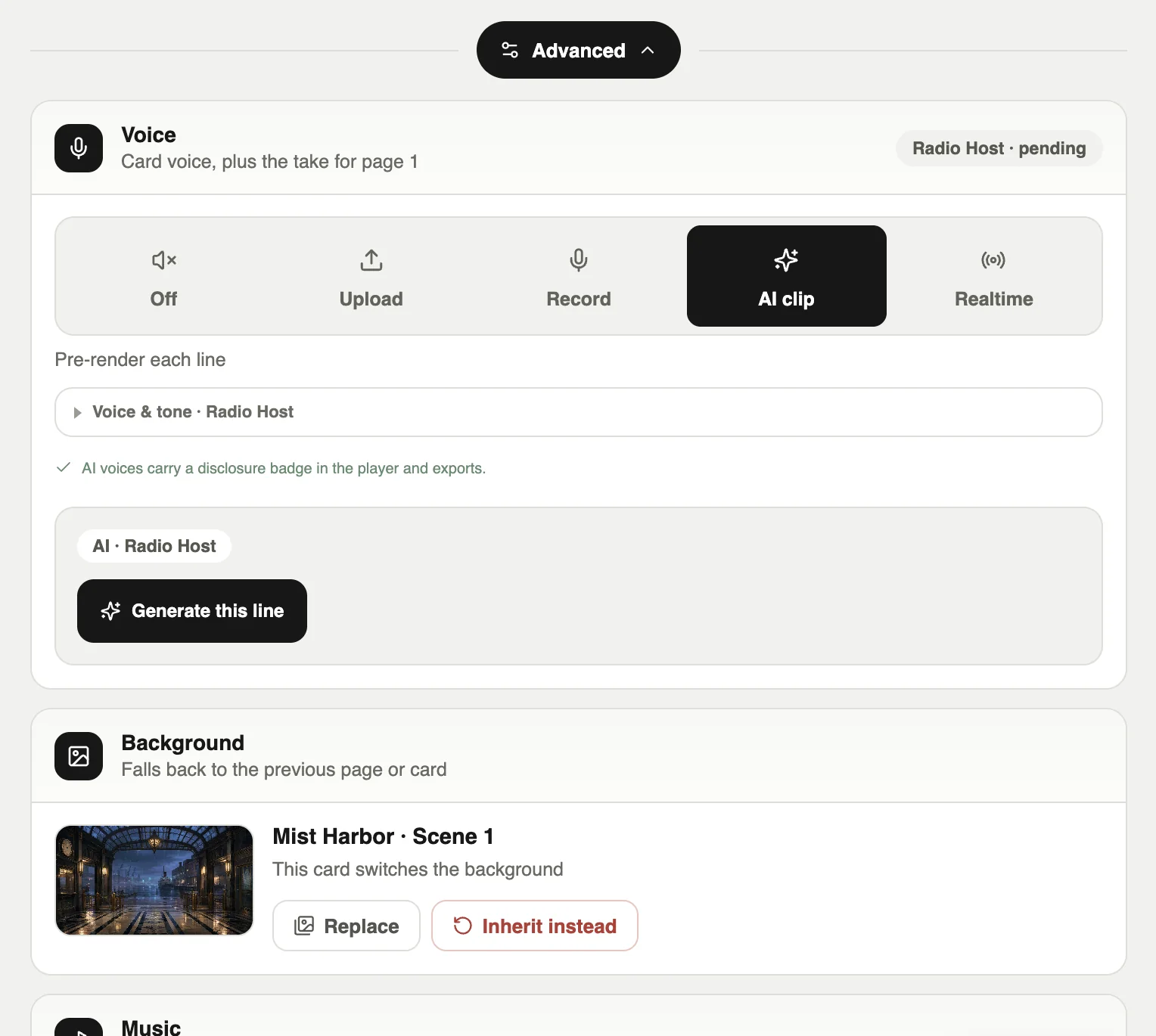
- Background: if you leave it empty, the previous card’s background stays.
- Music: change the track, stop it, or fade it out.
- Voice: AI clips are generated line by line in advance; you can also record your own.
5. Play it
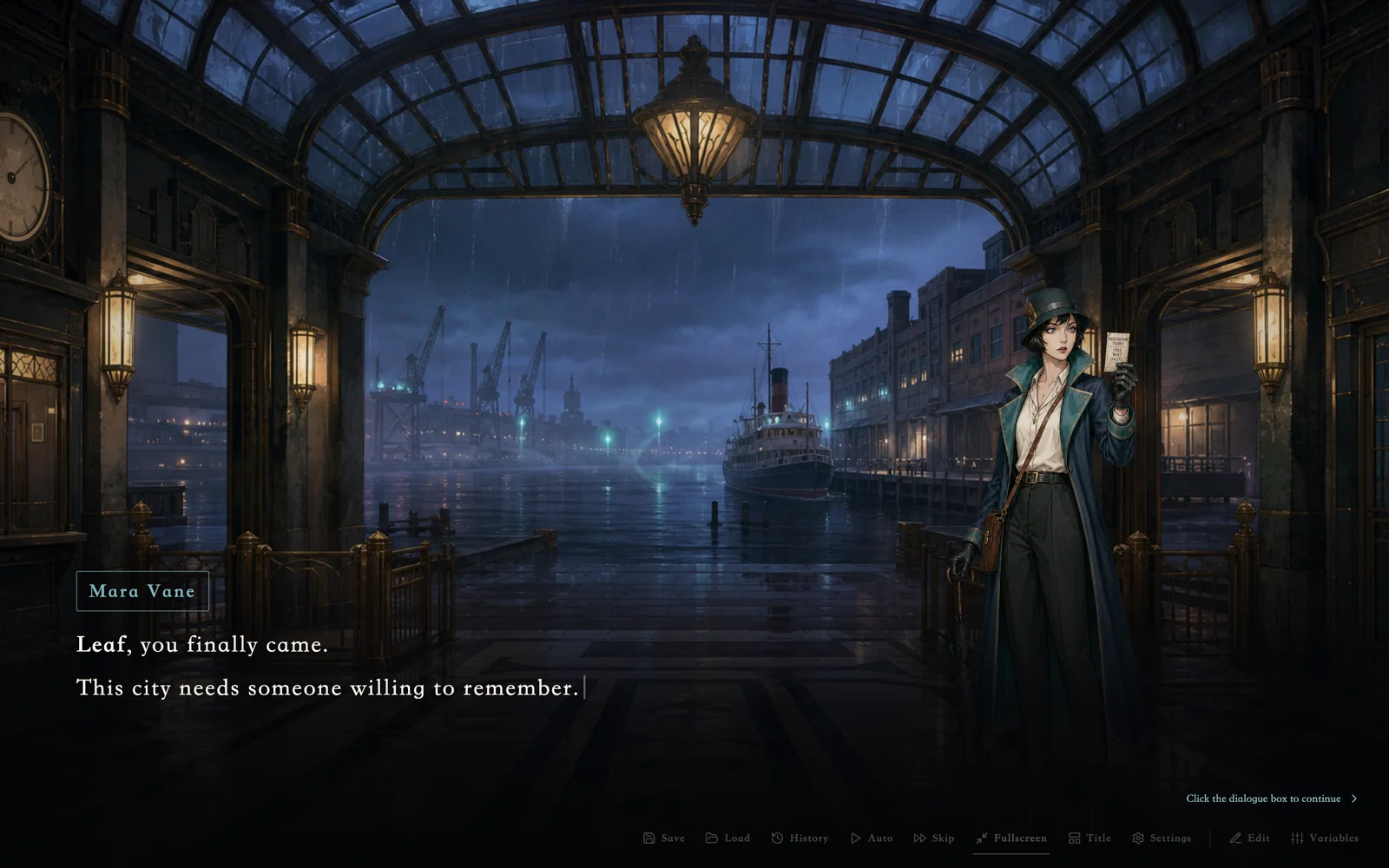
Press ▶ on the card, or the play button in the editor, to see it right away.
Official Live2D models and Spine characters are supported. Choose them when you upload a portrait in the Character studio.