AI features
Use Larch in ChatGPT: play, make and edit games
Connect Larch to ChatGPT: find games to play, make a story game from one sentence, edit project settings and the bag, check your numbers, and save pictures ChatGPT draws into your work.
Use Larch in ChatGPT: play, make and edit games
Connect Larch to ChatGPT and you can find games to play, make a story game from one sentence, edit your projects, check how your works are doing, and save pictures ChatGPT draws straight into your work, all inside a ChatGPT conversation.
It runs on your own ChatGPT: ChatGPT writes the scripts and draws the pictures, so it doesn’t use your Larch AI credits (it counts toward your ChatGPT plan instead).
1. Connect Larch
- Open the ChatGPT plugins page and choose Add → Add custom MCP server at the top right.
- Name it Larch, enter https://larch.ink/mcp/app as the URL, choose OAuth, read the notice and create it.
- The first time ChatGPT needs your works, it takes you to Larch to sign in. Choose Allow.
Larch is waiting for review for the ChatGPT plugin directory. Once it’s listed, just search for “Larch” and install it. If you don’t see Add custom MCP server, your plan or workspace may not allow it.
2. Bring Larch into the chat
Type @Larch in the message box, pick Larch, then say what you want.

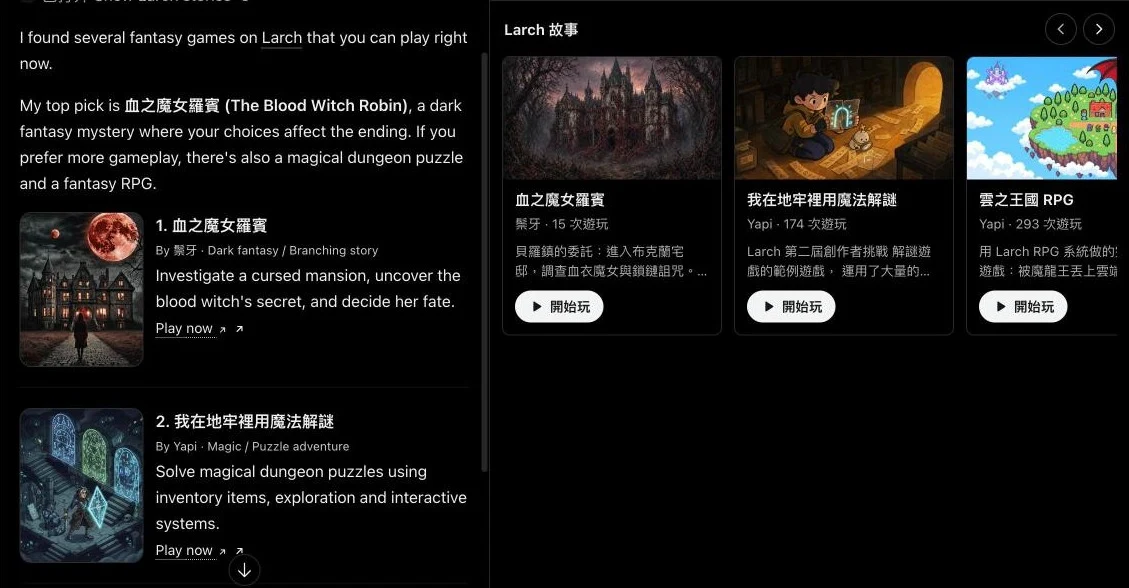
3. Find a game to play
- “What are the newest RPGs on Larch? Pick one for me.”
- “I want a fantasy story where my choices matter.”
Game cards appear next to the chat. Press Play to play right inside ChatGPT.
4. Make a story game from one sentence
Describe the story you want. ChatGPT writes a branching script, dresses it with backgrounds, portraits and expressions from Larch’s official art, and saves a playable game in your Larch.
- “Make a short choose-your-own-adventure about a lost cat in a rainy city, with two endings.”
- “Add a chapter to my project …: …”
- “Use the official anime art for this chapter.”
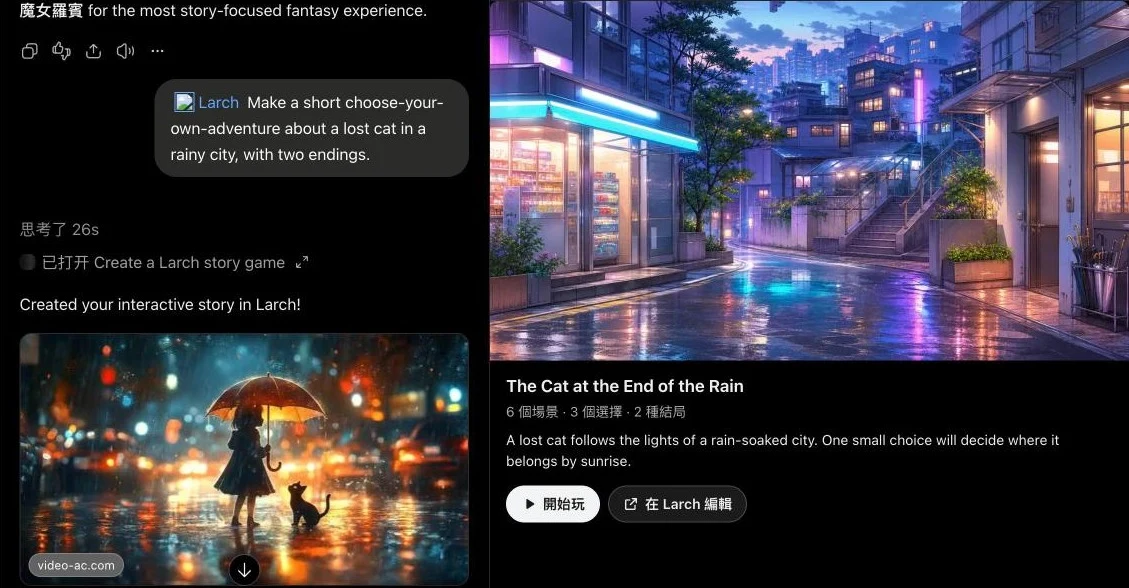
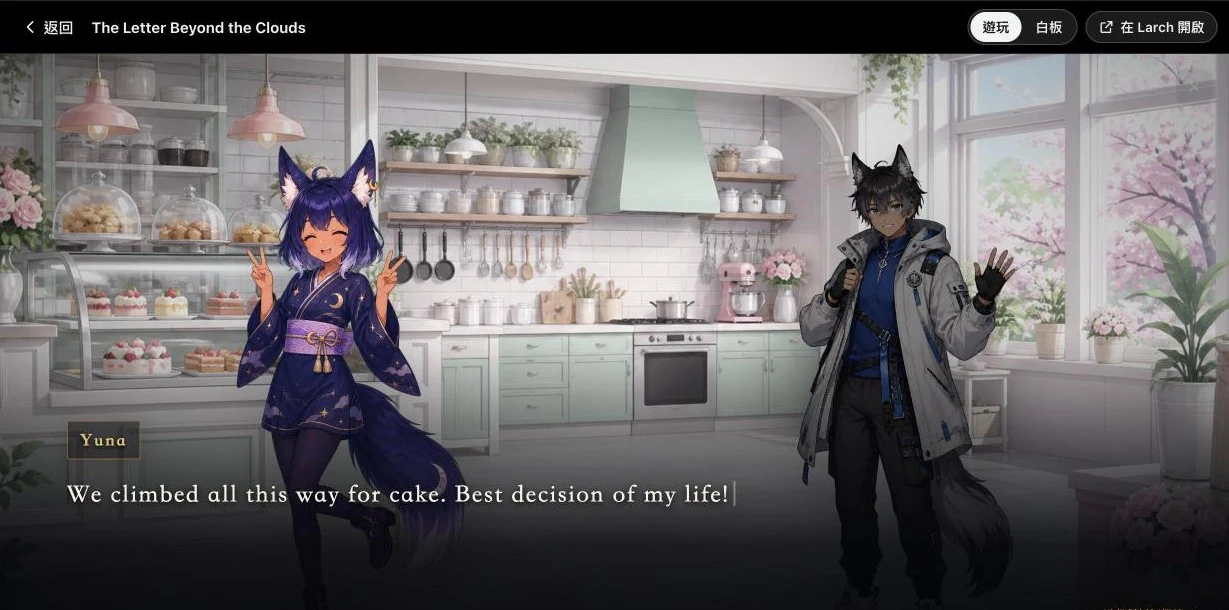
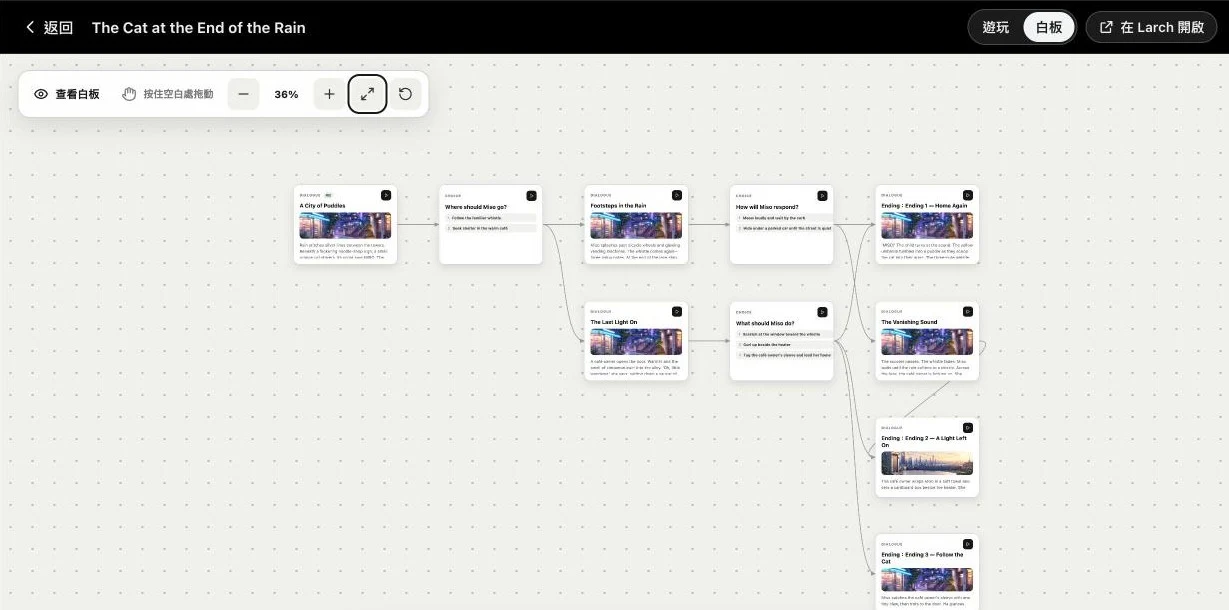
Press Edit in Larch to fine-tune it on the board, or ask ChatGPT to show the story board.
5. Edit a project: cards, RPG, settings and the bag
Say “open my project … and tell me about it”: ChatGPT sums up the story flow and opens the board next to the chat.
To change one card, paste its card ID: open the card in Larch and click the ID tag at the top to copy it. Then say what it should say instead, and play it right away in the panel.
- Cards: read any board and change dialogue, choices, characters and backgrounds.
- RPG: maps, events, battles, items and the database.
- Game settings: text speed, typing sound, title screen, arrow-key paging, the buttons under the dialogue box.
- Bag: the bag button’s place and look, slots, and adding or changing items. When you change an item, every card that gives it updates too.
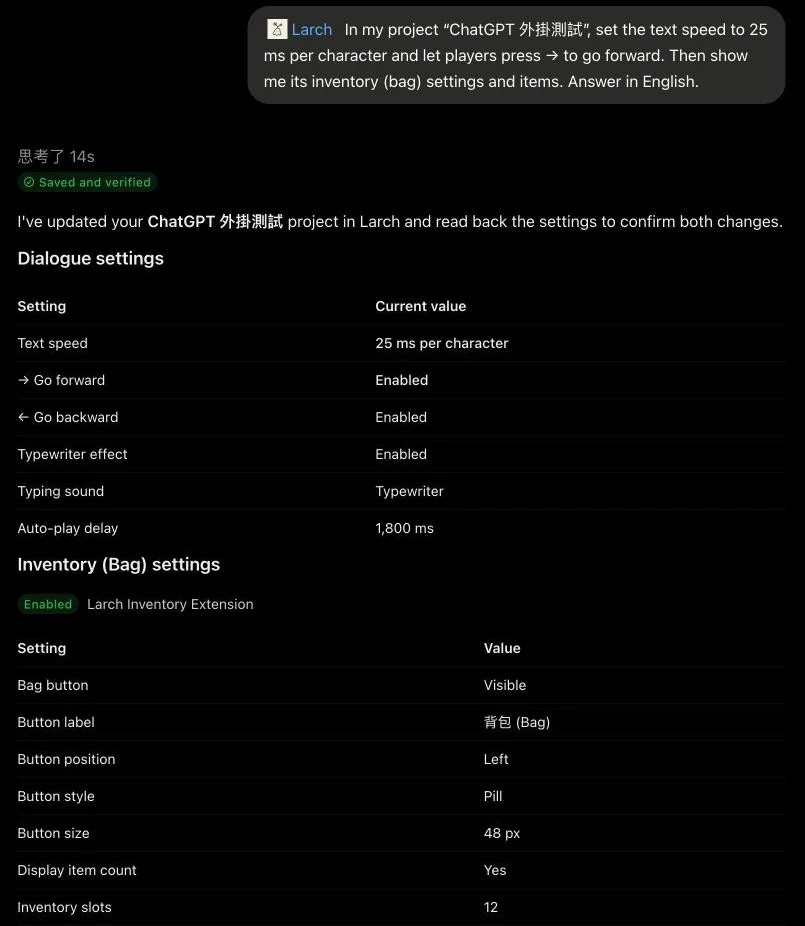
Larch saves a version before every change. If something goes wrong, say “restore the previous version”, or restore it from the version history in Larch.
6. Put ChatGPT’s pictures into your work
- “Draw a wide background of a desert oasis and save it to the media library of …”
- It can also become a card background, a character expression or a bag item’s picture.
- Your own pictures work too: attach one and say “save this to my project”.
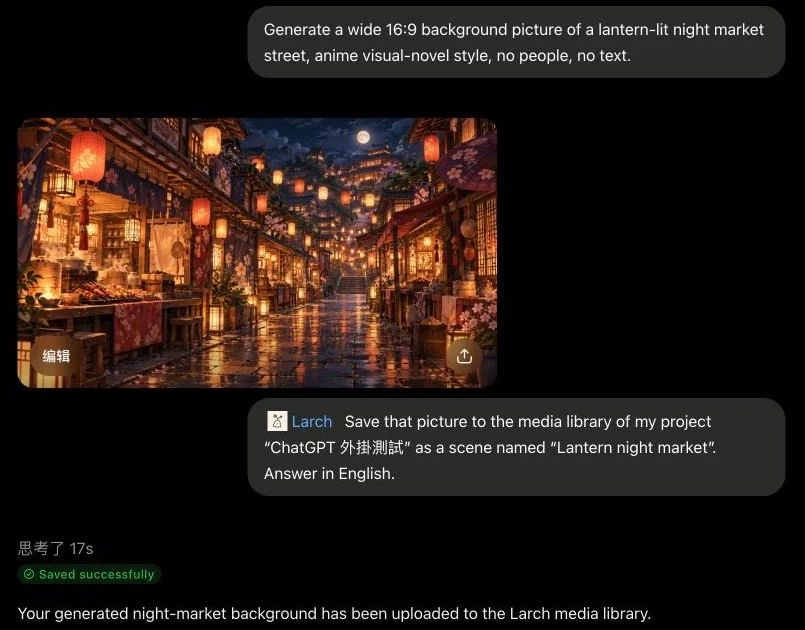
If ChatGPT says it can’t create images right now, ask for the picture without selecting Larch first. When it’s done, @Larch and say “save that picture to …”. If it uses another plugin (such as Canva) to draw, you can ask it to use ChatGPT’s built-in image generation instead.
7. See how your works are doing
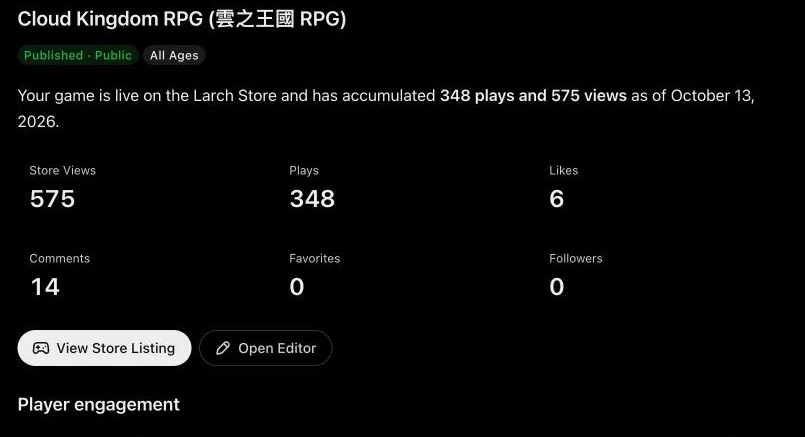
- “How are my works doing?”: followers, views, plays, likes, comments, dev logs and tips received in the last 30 days.
- “What’s the status of …?”: public, shared or private, delete protection, password and age rating. Published games also show plays, completion rate and which options players picked.
8. Publish and share
- Publish a game, update its store page, fill in the AI disclosure and create a share link.
- Post to the Teahouse (with pictures or a poll) and write dev logs.
- List asset packs and extensions on the store.
These are public, so ChatGPT only does them when you clearly ask to publish.
9. What it can’t do
- Delete whole projects, buy plans or take payments in ChatGPT.
- Use your Larch AI credits to generate pictures or voices.
- When you ask for something the plugin can’t do yet, ChatGPT reports the request to the Larch team.
FAQ
- Does it use my Larch AI credits? No.
- How do I disconnect? On your Larch account page, open Agent Key and revoke “ChatGPT 連結”. You can also remove Larch in ChatGPT’s plugin settings.
- ChatGPT changed something I didn’t want. Say “restore the previous version”, or restore it from the version history.
- I don’t see a new feature. Open Larch in ChatGPT’s plugin settings and choose Refresh.