Publish & export
Publish, share and export
List your game on the Larch store, share a play link, invite friends to edit with you, or export to the web, Windows, Unity, Godot or Ren’Py.
Publish, share and export
There are three ways to send your game out: Publish to marketplace: list it on the Larch store. Export game: get a play link or files. Share board: invite friends to edit with you.
On a phone, these buttons are in the menu beside the board’s name.
Before you publish
- Play it from the title screen and walk every route.
- Prepare a cover, a title and a short description.
- If you used AI-generated content, tick the AI disclosure.
- Only use pictures, fonts and music you have the right to use.
List it on the Larch store
- Press Publish to marketplace in the toolbar above the board.
- Check the details and choose which chapters are public.
- Choose game only or open to remixing, then press Publish.
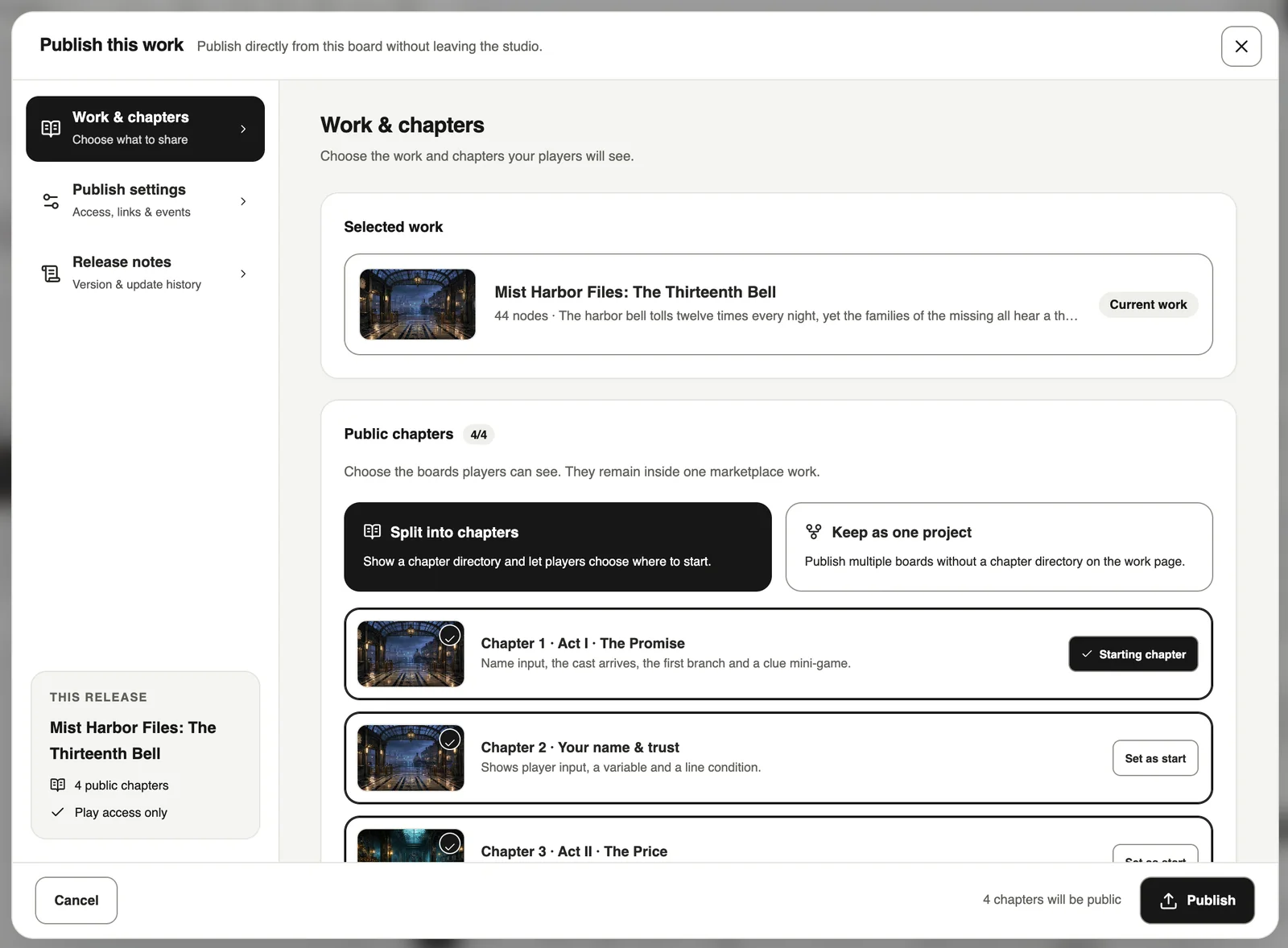
To update it later, open the same window and update the published work.
Export
Press Export game in the toolbar above the board:
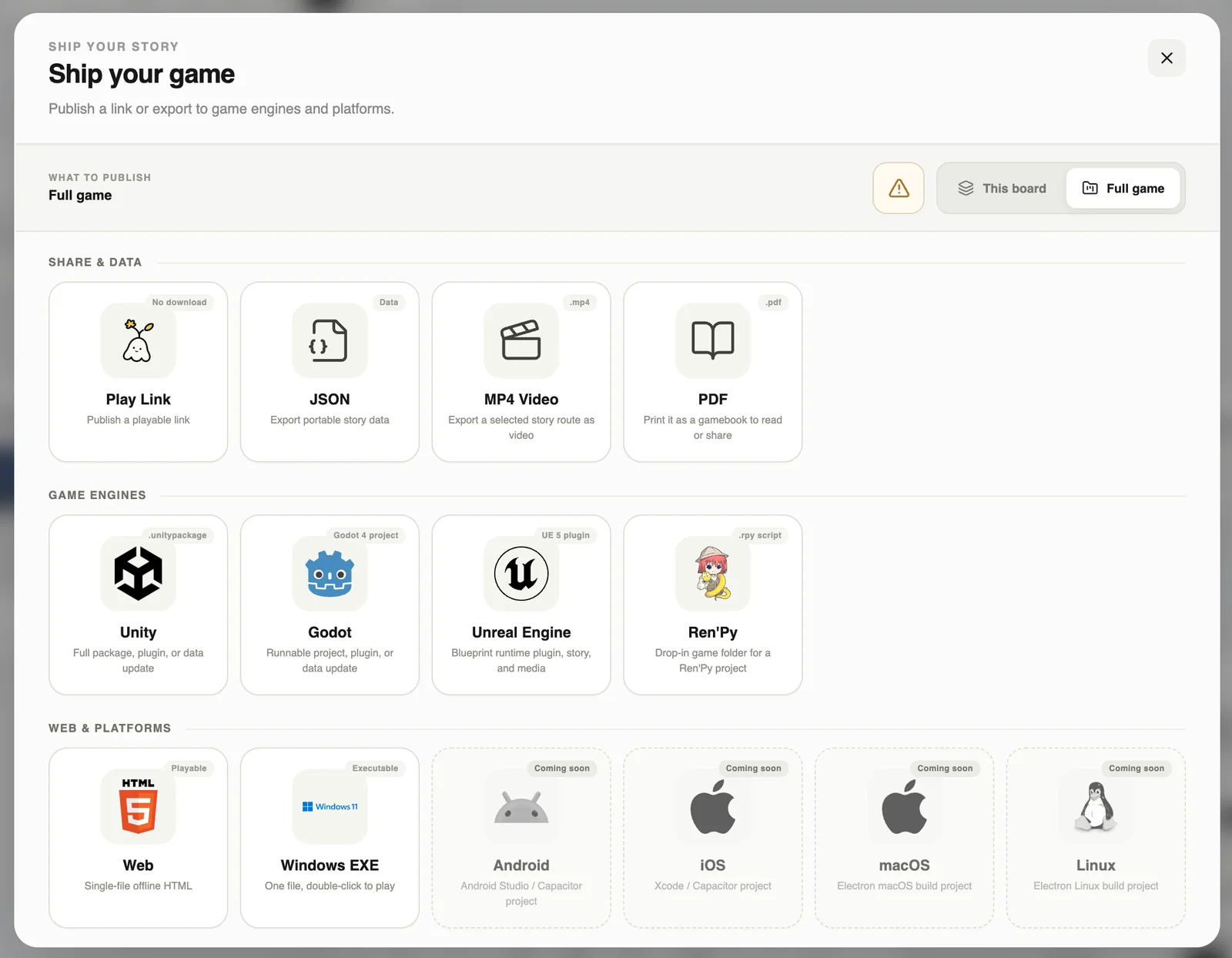
- Play Link: one URL to play, which you can also embed on your site.
- Web (a single HTML file or a ZIP) and Windows EXE.
- Game engines: Unity, Godot, Unreal Engine and Ren’Py.
- Other: JSON, MP4 video, PDF gamebook.
Android, iOS, macOS and Linux builds are coming soon. Phone players can play the web version in their browser today.
Edit together
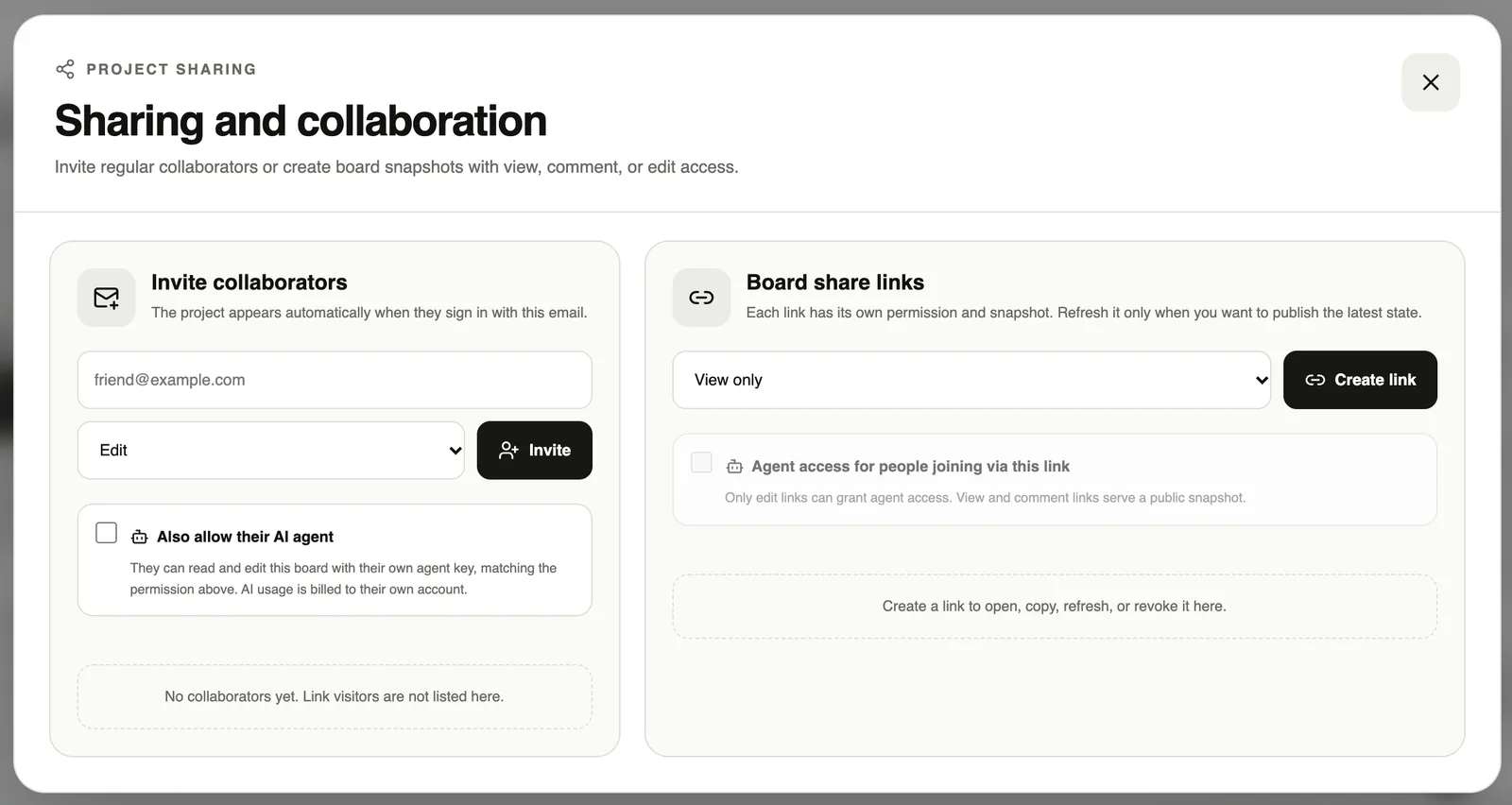
Press Share board and enter a friend’s email, then choose view only, comment, or edit. Everyone can work on the same board at once, with chat in the top-right corner.
Passwords and ratings
In Project settings → General → Publishing protection you can add a password, or mark the game 15+ or NSFW.
See how it does
After publishing, press the chart button on the project card in Projects to see views, plays, completion rate and how often each option is picked.