RPG system
RPG crossovers: take items and characters into other works
Items players got in one work and characters they adventured with can step into another of your works, or into another creator’s.
RPG crossovers: take items and characters into other works
Crossovers connect works: an item a player got in work A, or the hero they adventured with, can show up in work B — the item lands in their bag and the character joins their party. It works for visual novels with the inventory plugin and for RPGs.
- Open it: Turn on “Open for crossovers” on an item or character in work A.
- Players get it: Signed-in players who get the item or adventure with the character in work A keep it in their account’s crossover collection.
- Link it: Work B adds it from a picker. When players start that game, whatever their collection holds comes along.
Try the examples
To see it working first, create the two crossover example projects. Two new projects go into your workspace (nothing is published): in example A the sky crystal and the hero Maple are open for crossovers, and example B links them. Play A, pick up the crystal and walk into the inn; then play B: the crystal is in your bag and Maple joins your party — press Q to let him lead. A note on each board says where to look.
Open an item for crossovers
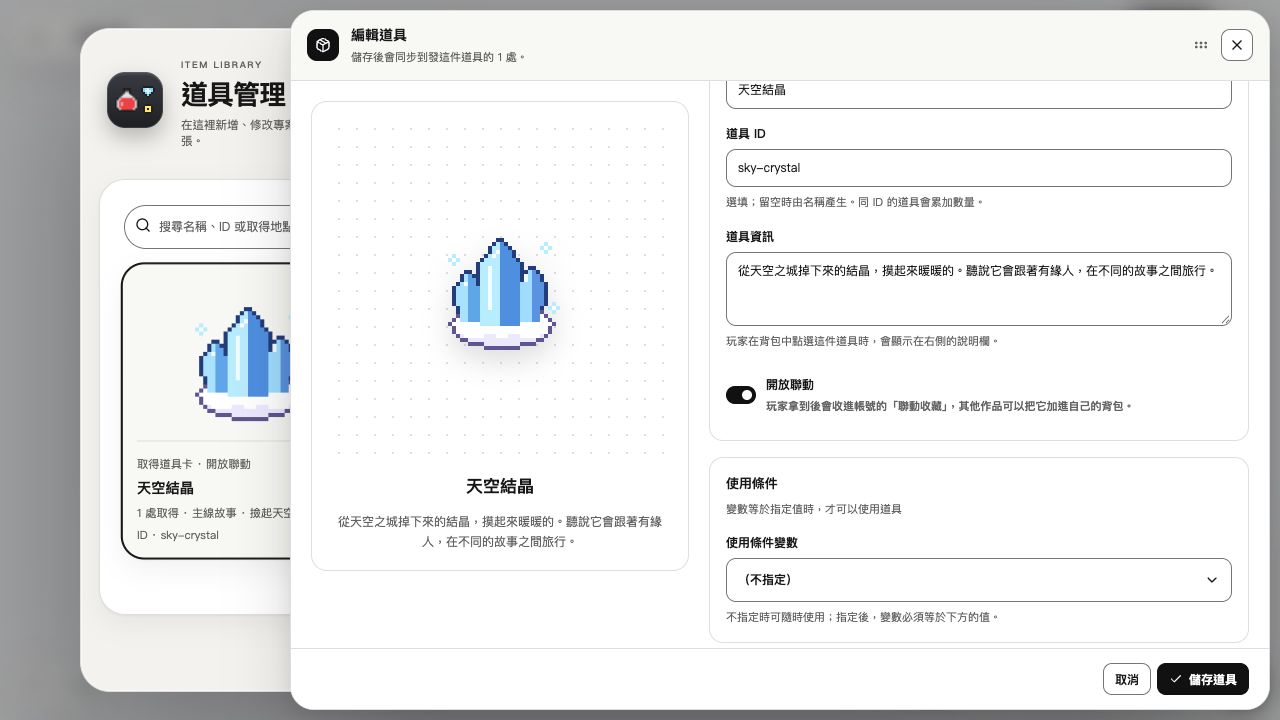
- Open the item: Add card → Plugins → Inventory → “Item manager”, then pick an item. RPG items can also be set in the RPG database under “Items”.
- Turn on the switch: At the bottom of the item details, turn on “Open for crossovers” and choose Save item.
- Publish the work: Other creators can link it once the work is public in the marketplace; your own works can link each other without publishing.
Open the hero or a companion
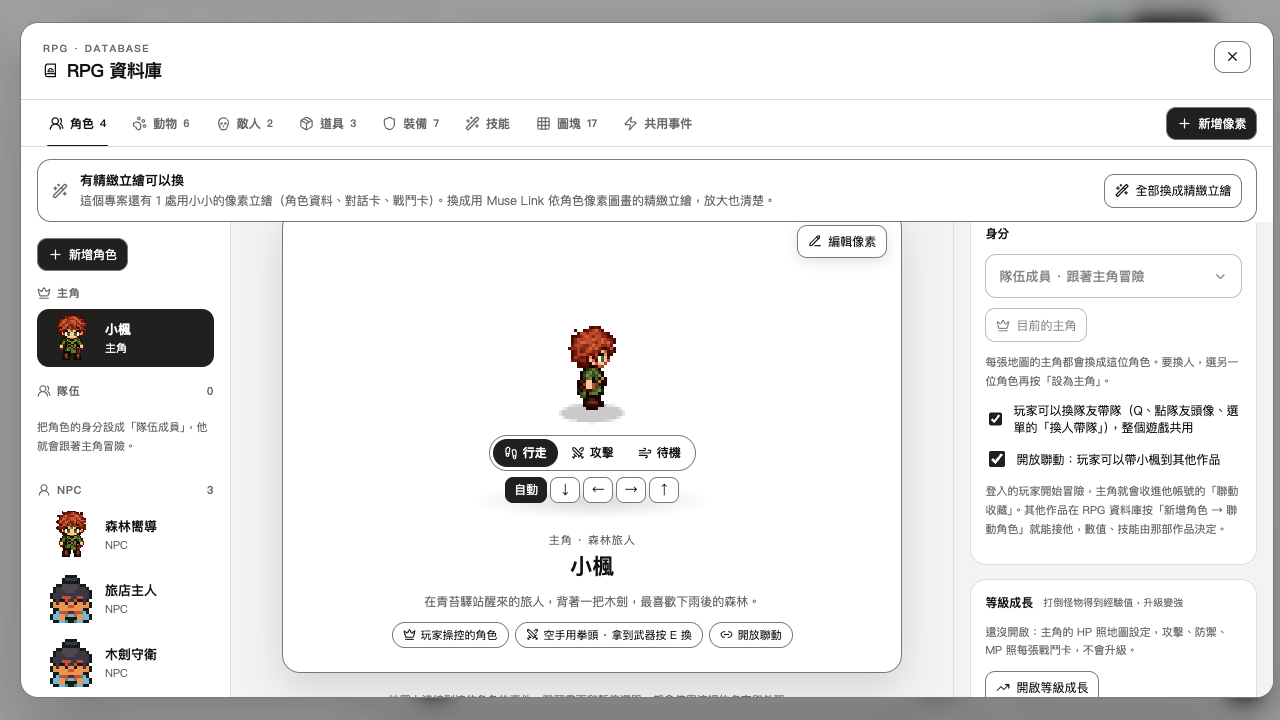
- Pick a character: Open the RPG database’s “Characters” and pick the hero or a companion.
- Tick the box: Under “Role”, tick “Open for crossovers”.
- When it counts: The hero counts once the player walks onto an RPG map; a companion once they join the party. NPCs never travel with the player, so they cannot be opened.
Link it in another work
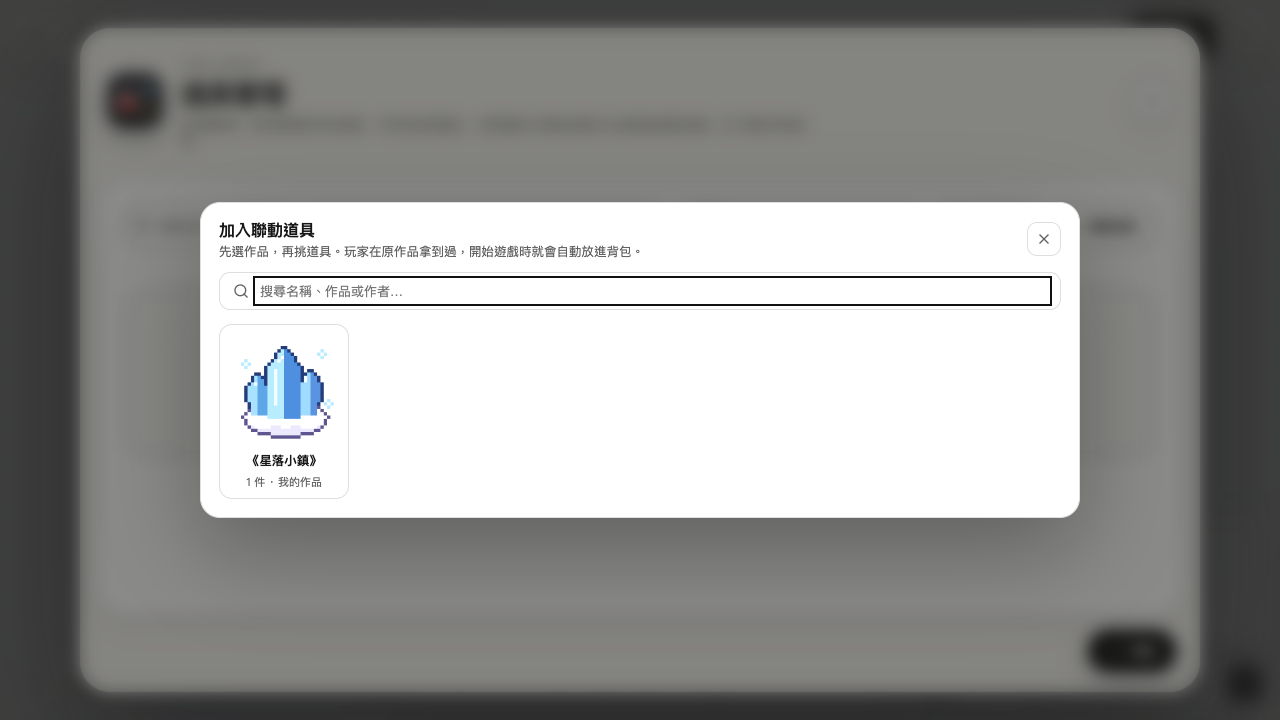
- Inventory items: Item manager → “Crossover item”.
- RPG items: RPG database → “Items” → “New item” → “Crossover item”.
- Characters: RPG database → “Characters” → “New character” → “Crossover character”.
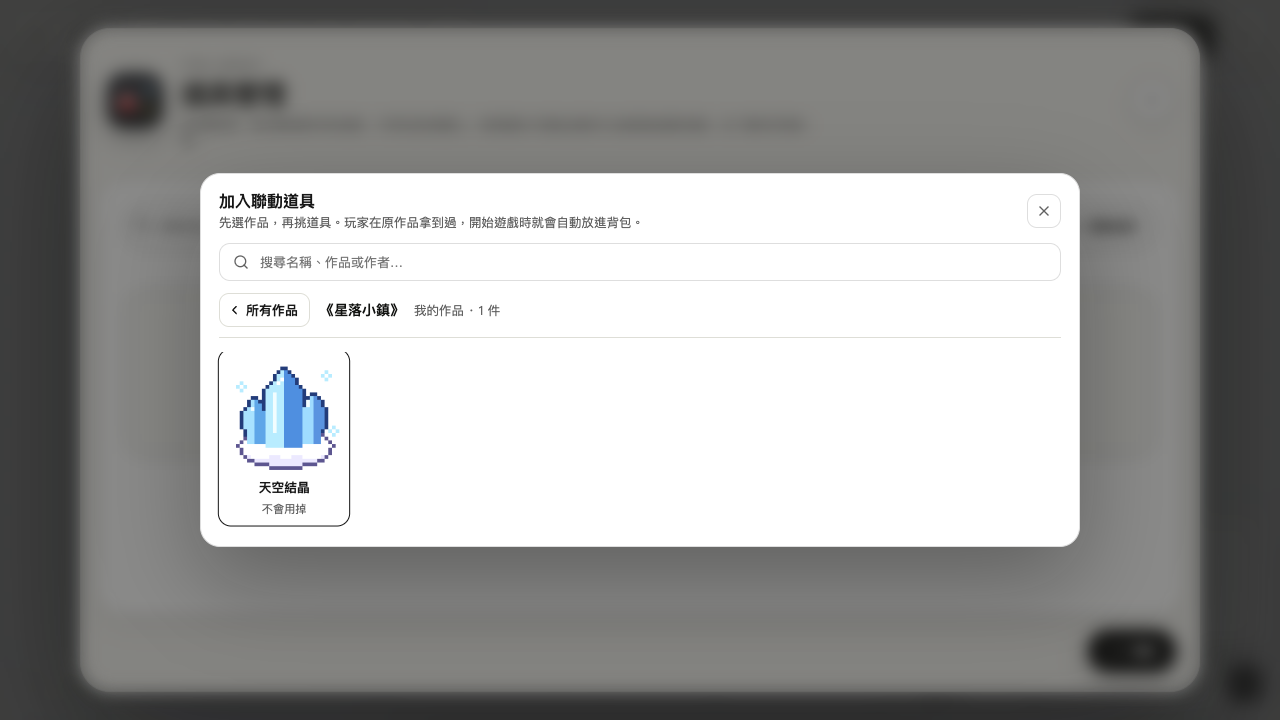
The picker lists works first (your works and the marketplace’s public works on two tabs); open one to pick what it offers, or search by name. The original’s numbers come along: how much an item restores, whether it is used up and its special effects; a character’s class, level growth and attack. Everything stays editable afterwards, and “Use the original’s numbers” in the source note brings them back.
A crossover character becomes a companion: if the player’s collection holds them, they join the party when the game starts. Players can press Q, tap the companion’s face or use “Switch leader” in the menu to let them lead, on turn-based and action maps alike. Larch creates a switch variable for them (for example crossover_maple) that event conditions can use too.
What players see
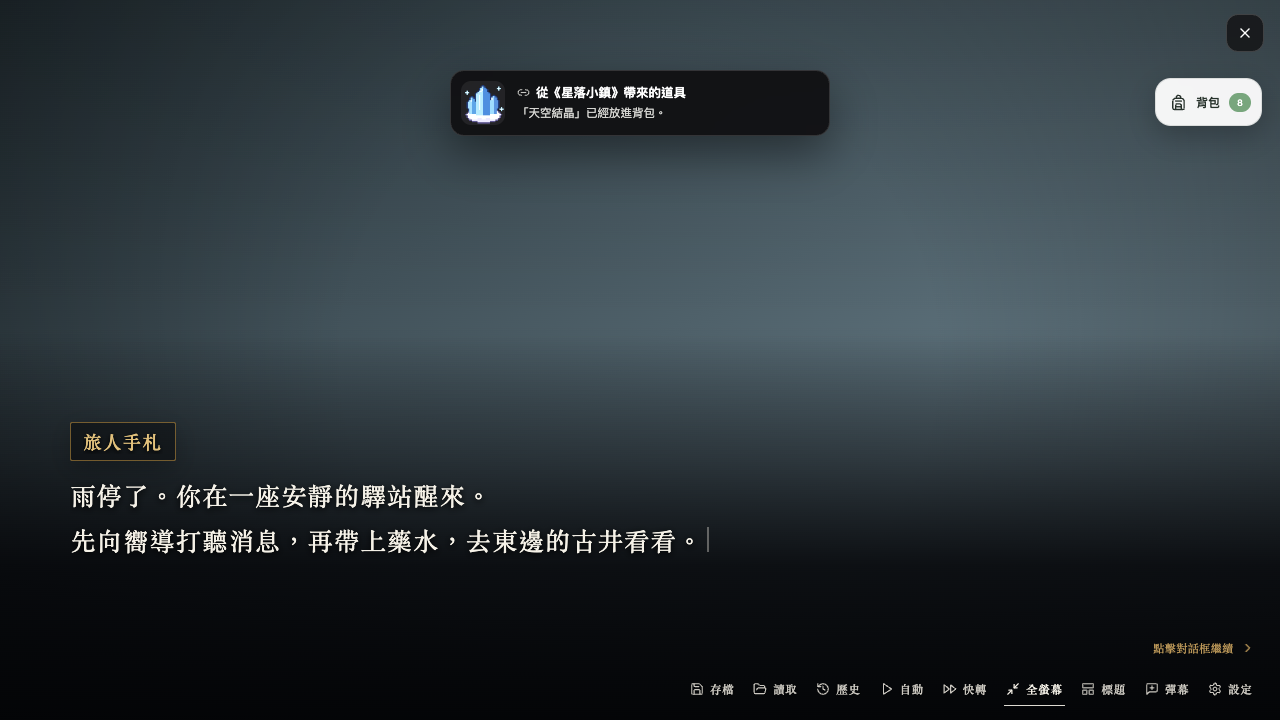
- When they get it: “Added to your crossover collection” at the top of the screen.
- When a game starts: “Brought from A” or “A companion from A”: the item is already in the bag and the character in the party.
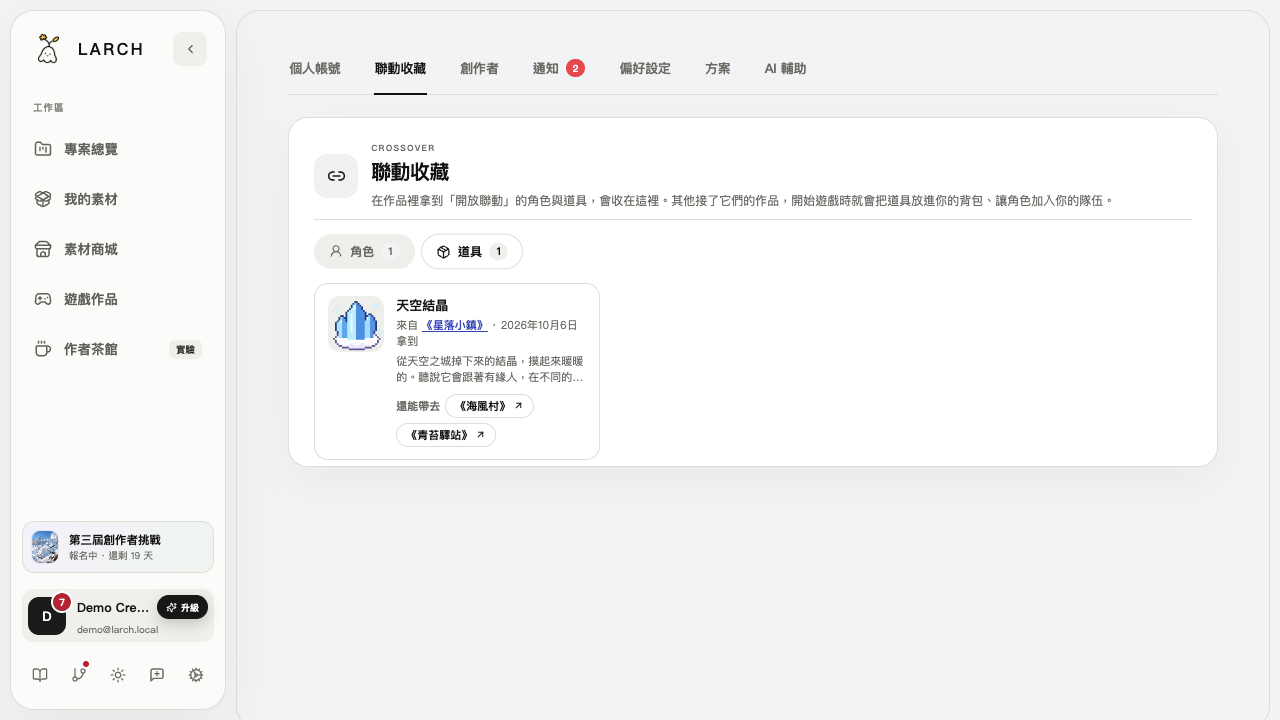
- Account settings → Crossovers: Every character and item they got, the work it came from and the works it can go to — tap a title to play it.
Let the story notice it
A crossover item is an ordinary item in the bag, so “has item” conditions and event page conditions work: a guide who says more when the player carries the sky crystal, or a chest only it opens. A crossover character’s switch variable works as a condition too, so NPCs can greet the visitor from another work.
Give it later in the story
By default it arrives when the game starts (or a save loads). To give it at a moment in the story, turn off “Put it in the bag when the game starts” on the crossover item: if the player’s collection holds it, only its variable (for example crossover_sky_crystal) turns true; use it as a condition and give the item with a Grant item step. For a crossover character, set “Joins when” to “Not yet”, use their switch variable (for example crossover_maple) as an event condition, and bring them in with a Party member step.
FAQ
- Do players have to sign in: Yes. What guests get waits on that device and joins their account once they sign in.
- How many arrive each playthrough: One per new game; loading an old save brings it only if that save never got it. No second copy if the bag already holds one, and an item used up does not come back on reload.
- My raising game continues from earlier progress: Players use Continue on the title screen to load their last save: what that playthrough already got is not brought again, and anything collected since then arrives on load.
- Do exported games support it: Exported HTML and EXE games have no Larch account, so nothing is collected or brought in; the rest plays as usual.
- What if the original stops opening it: New players can no longer get it; players who already have it can still bring it into the works that link it.
- Can I link another creator’s work: Yes, once their work is public in the marketplace and they turned on “Open for crossovers”.