Story board
The story board: cards, lines and chapters
The kinds of cards, three ways to add them, lines and quick playtests, chapters in one project, and version history.
The story board: cards, lines and chapters
The story board is the heart of Larch. A card is one moment; a line is what comes next.
Kinds of cards
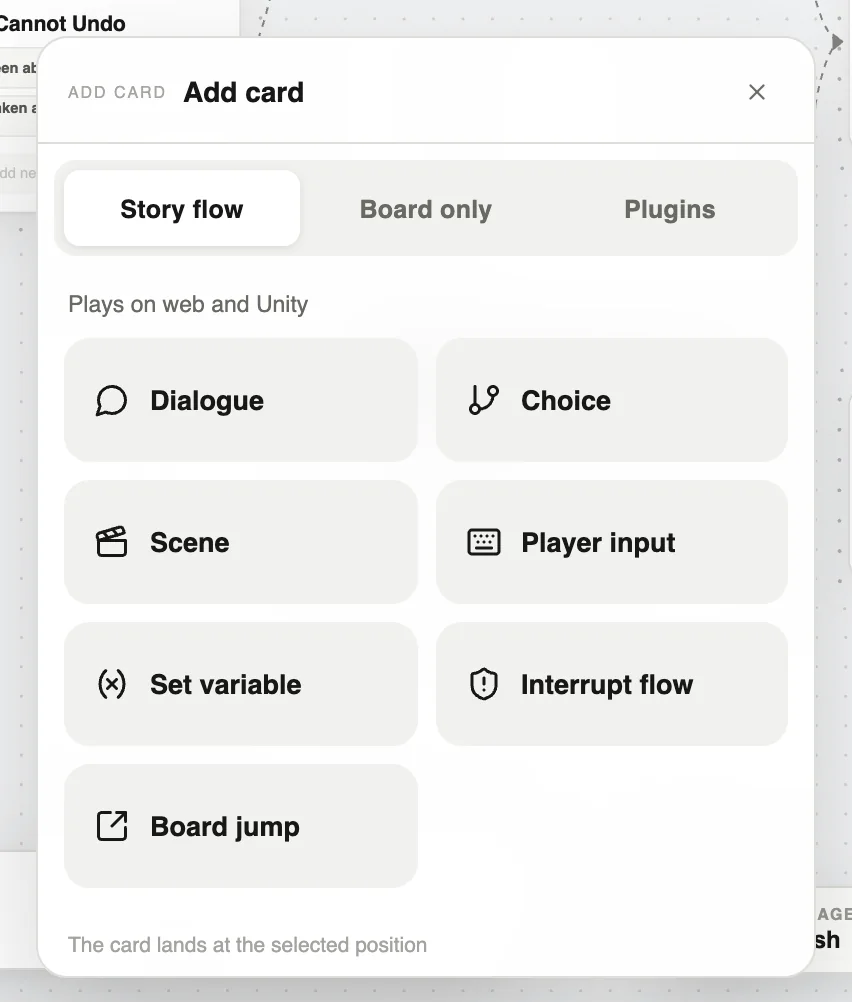
- Story flow: Dialogue, Choice, Scene, Player input, Set variable, Interrupt flow, Board jump. They play on the web and in Unity.
- Board only: AI minigame, AI dialogue, Video, Group section, Inspiration, Lore entry. They play on the web only, or stay on the board as notes.
- Plugins: cards from plugins you have imported, such as the inventory or RPG maps.
Three ways to add a card
- Double-click an empty spot on the board.
- Press + Add card in the toolbar at the bottom.
- Drag a line out of a card, drop it on empty space and choose to add a card on that line.
Lines and quick playtests
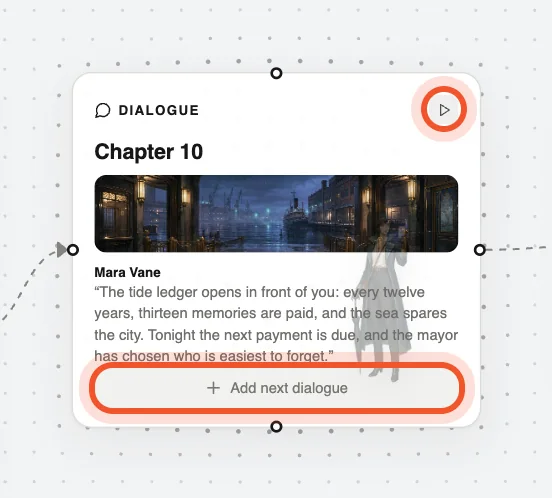
Hover a card and dots appear on its four sides. Drag from a dot onto another card to connect them. Click a line to add a condition, change its colour or delete it.
One project, many boards
A board can be an episode, a chapter or a side route. Click the board name in the top-left corner to switch boards or open “Manage boards”.
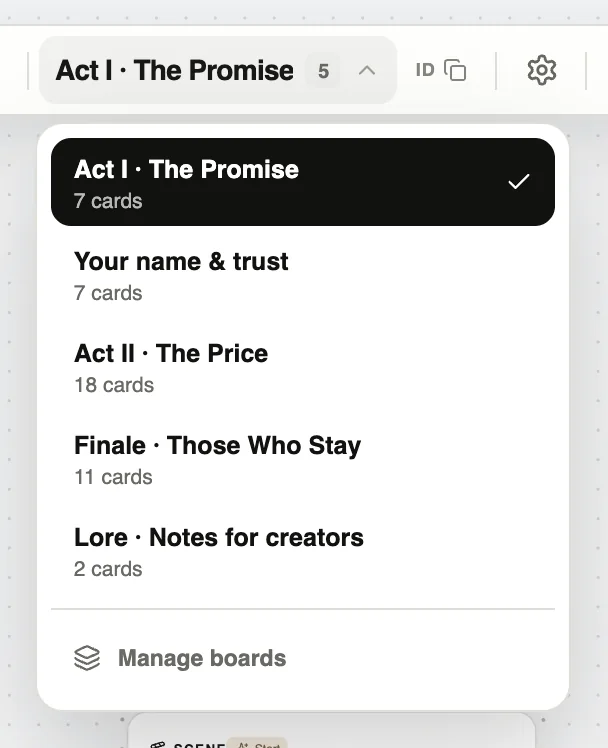
To continue on another board, use a Board jump card.
Saving and versions
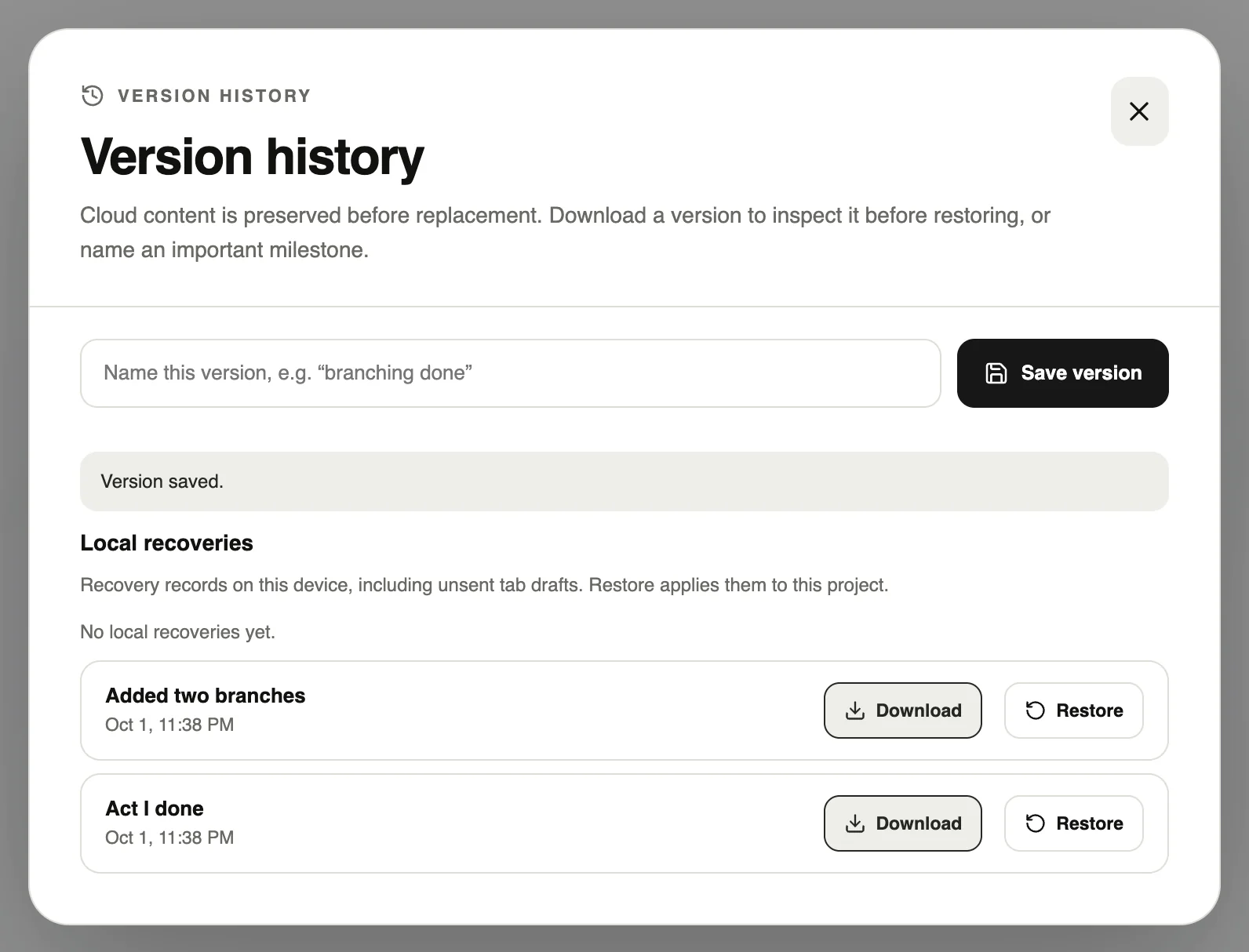
Larch saves to the cloud automatically; ⌘/Ctrl + S saves right away. For milestones, name a copy in Version history. You can download or restore it any time.
Handy shortcuts
- ⌘/Ctrl + Z undo, ⇧ + ⌘/Ctrl + Z redo
- ⌘/Ctrl + C and V copy and paste — even across boards and projects
- ⌘/Ctrl + F find a card
- ⌘/Ctrl + G group the selected cards
- Two-finger swipe on a trackpad pans; the mouse wheel zooms
The Free plan allows 100 cards and 10 boards per project. Pro has no limits.