Characters & staging
Interface design: title screen, dialogue box and fonts
Set up the title screen, aspect ratio, dialogue box, fonts and CG gallery so your game has its own look.
Interface design: title screen, dialogue box and fonts
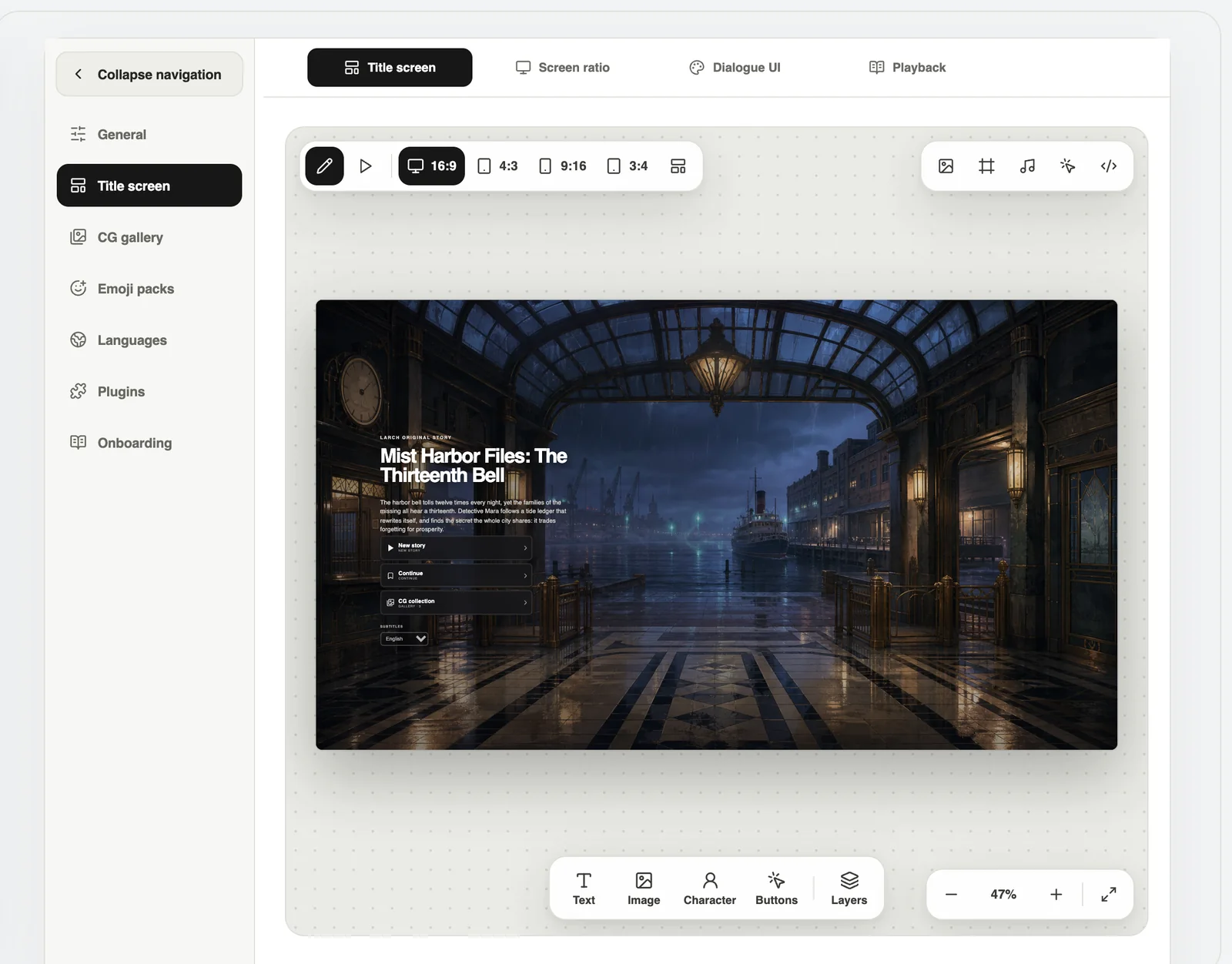
Interface settings live in Project settings → Title screen. Whatever you change shows up in the preview right away.
Title screen
Drag text, pictures and buttons wherever you like. On Pro, AI can paint a title cover, and buttons in four states (normal, hover, pressed, disabled).
Aspect ratio
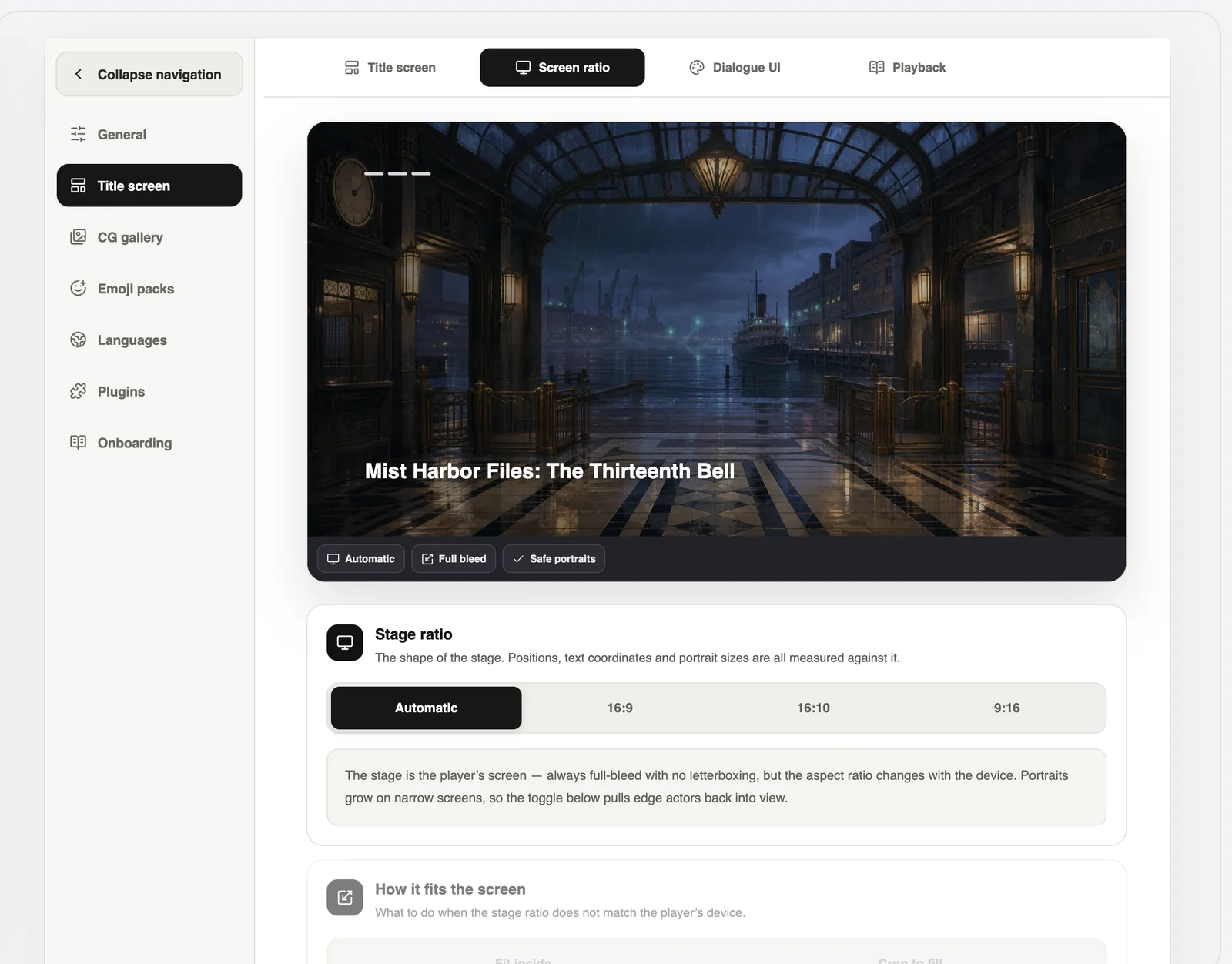
- 16:9 landscape: computers and the web. The default is 1920 × 1080.
- 9:16 portrait: games for phones held upright.
- When a screen does not match, choose to show everything or to crop and fill.
Dialogue box and fonts
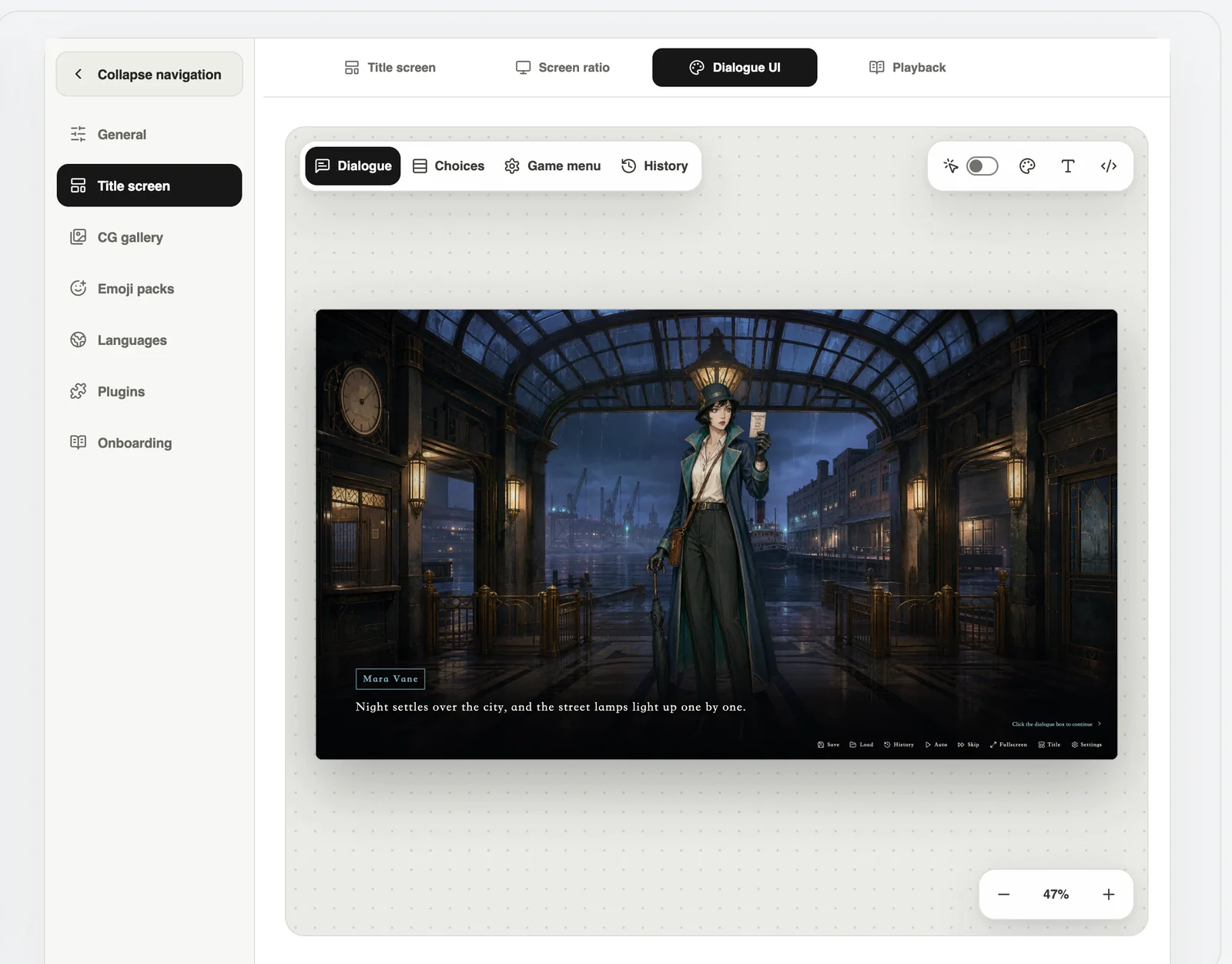
Style the dialogue box, name tag, choices, quick buttons, game menu and history. You can upload your own font too (woff2, woff, ttf or otf, up to 12 MB).
CG gallery
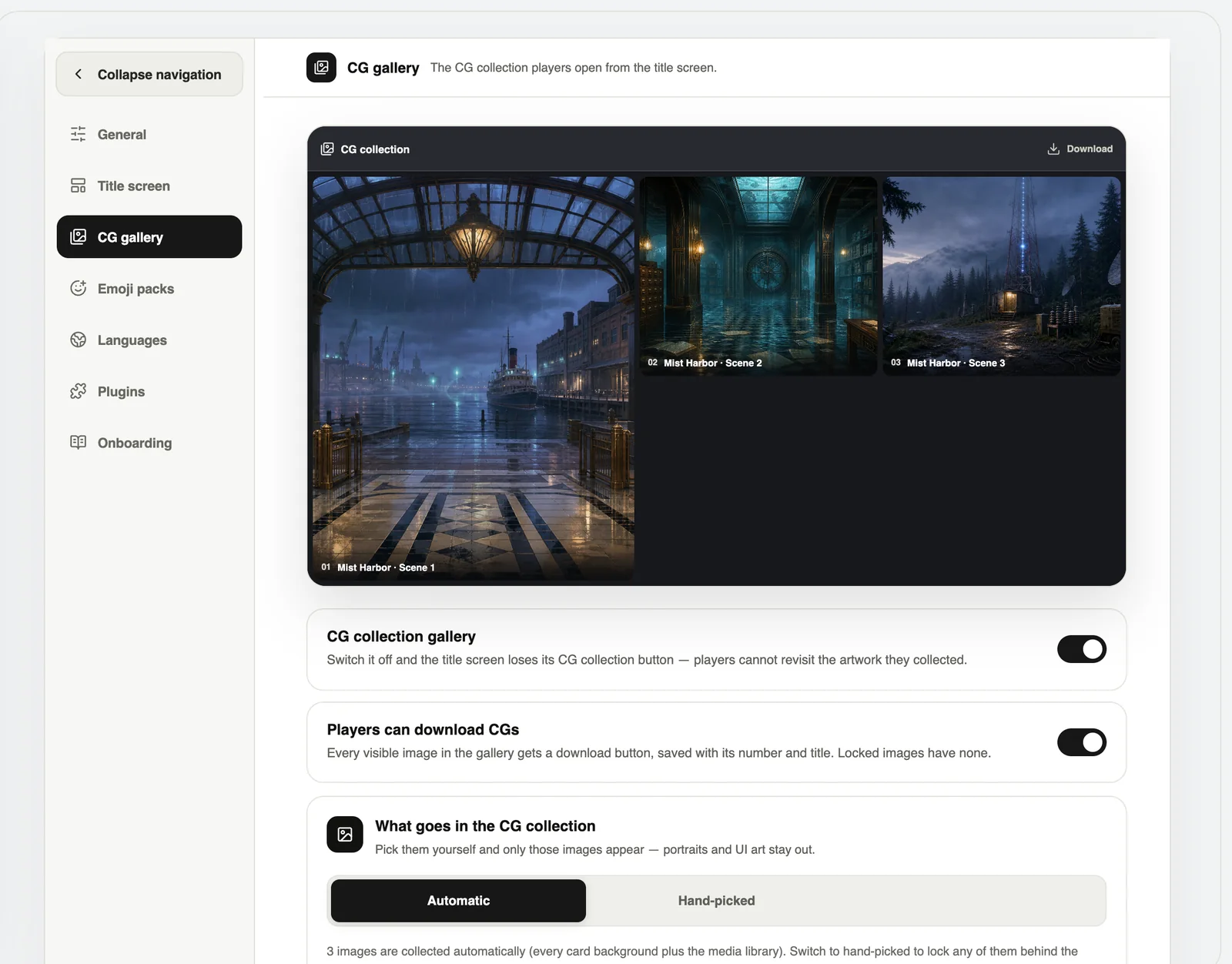
Turn on the CG gallery under CG gallery. CGs unlock as players see them, and you decide whether players may download them.
Little extras
- Cursor: the system cursor or your own picture.
- Click effect: a small animation where players click.
- Playback: default volume, return to the title after the ending, and a language picker on the title screen.
How big should your art be? See “Assets: uploads, packs and image sizes”.